# Complete translator user guide
Translate by AskLex · English edition · Updated 2026-09-19
Read the illustrated guide: https://mytranslates.com/help/user-guide
All examples are fictional. Certificate screenshots are specimens, not issued certificates. Prices and available options shown in the app take precedence over examples.
## Contents
- [Start here: your first translation](#start)
- [Create an account or sign in](#sign-in)
- [Enter or resend your email code](#verification-code)
- [Tell us about yourself](#first-sign-in)
- [Prepare a file that is easy to read](#prepare)
- [Add a document](#upload)
- [Choose the language direction](#languages)
- [Check the quote before continuing](#price)
- [Follow reading and translation progress](#progress)
- [Find and organise your documents](#library)
- [Read the translated draft](#reading-view)
- [Compare the original and translation](#side-by-side)
- [Review one paragraph at a time](#paragraph-view)
- [Edit, save and check suggestions](#editing)
- [Keep checkpoints and use history](#history)
- [Download the right file](#downloads)
- [Share a document safely](#share)
- [Choose what happens after Draft ready](#choose-review)
- [Accept and certify the digital copy](#digital-seal)
- [Send the draft for sworn review](#sworn-review)
- [Verify a serial or QR code](#certificate)
- [Check a certificate: step by step](#check-certificate)
- [Understand the verification result](#verification-results)
- [Archive, restore or delete](#archive)
- [Review charges, orders and notifications](#billing)
- [Change your profile and email language](#preferences)
- [Manage passwords and signed-in devices](#security)
- [Use Translate on a phone or with a keyboard](#mobile)
- [Solve common problems](#troubleshooting)
- [Get help or ask for document drafting](#help)
- [A quick glossary](#glossary)
## 1. Start here: your first translation
Translate turns a document in one language into a draft in another. You can read and edit the draft, download it, and choose digital sealing or sworn-translator review when available.
1. Prepare a clear PDF, Word document (.docx) or photo. Sign in before uploading.
2. Choose Add document, select the file and choose the language you want. Check the source language too.
3. Read the quote. Approve the amount shown when you are ready. Some scans need to be read before an exact translation price is available.
4. Wait for Draft ready. Compare the translation against the original, especially names, dates, numbers and missing lines.
5. Download the draft, or choose the appropriate review and certification option. Check what the receiving organisation requires before selecting a final service.
**Note:** This is the customer guide. Staff, sworn-translator and developer workspaces have different controls. Screenshots use a fictional community-workshop notice; no customer documents or real certificates are shown.
[Sign in or create an account](https://mytranslates.com/signin)
[Download the practice Word document](https://mytranslates.com/samples/community-workshop-en.docx)
## 2. Create an account or sign in
Use Sign in or Create account. The email flow handles both new and existing accounts.
1. Enter an email address you can access, then select Continue.
2. If your account uses a password, enter it. If you cannot remember it, use the offered email-code option.
3. For an email code, open your inbox and enter the latest six digits on the same sign-in screen. Check spam or junk if the message is missing.
4. Use the Google or Lex sign-in button if that is how you normally access your account. Complete the provider’s sign-in and return to Translate.
**Note:** Use the same sign-in identity each time so you return to the account that holds your documents. Never give a sign-in code or password to another person.
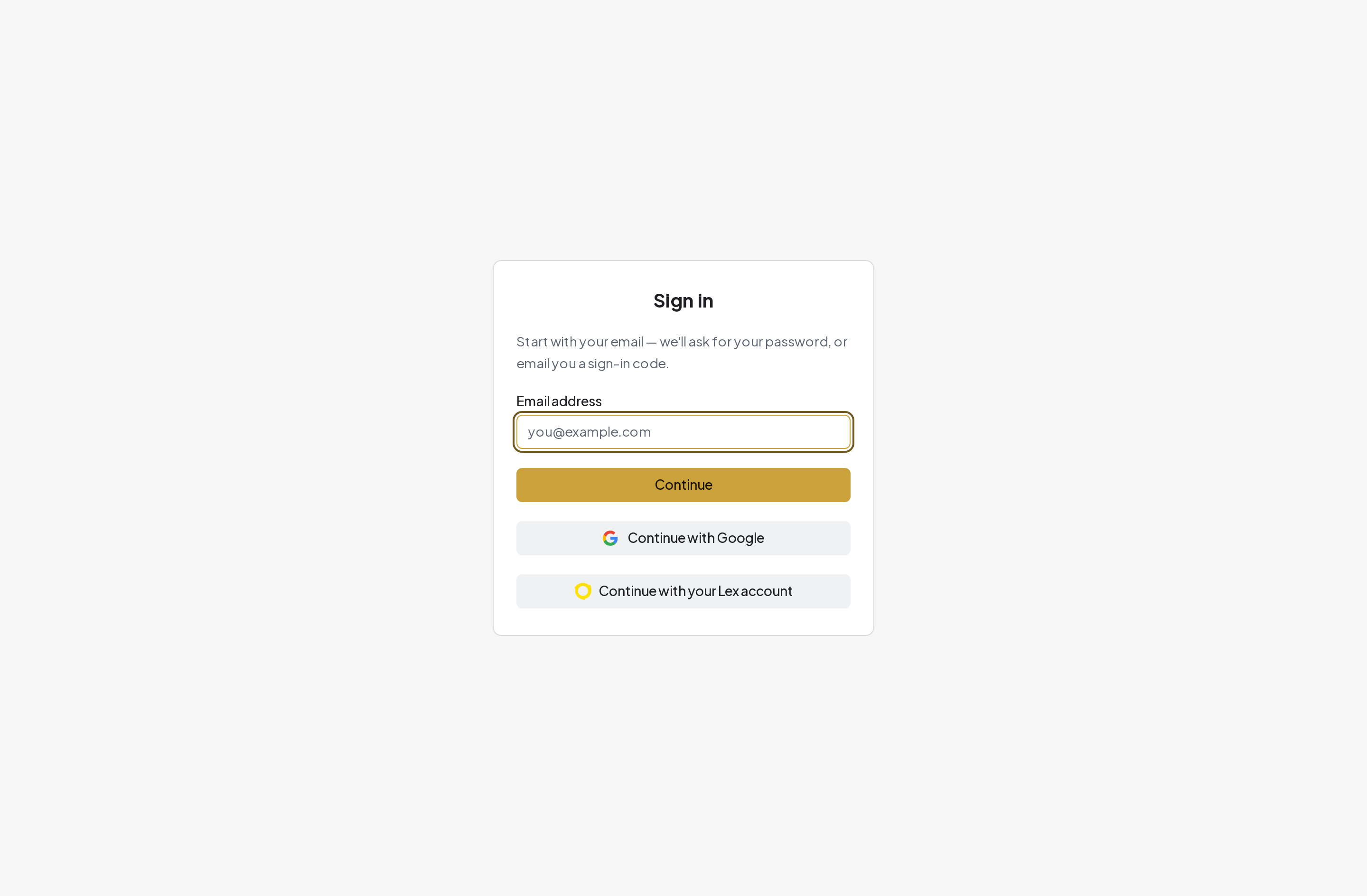
The sign-in screen. The sample screenshots contain no real account details.
## 3. Enter or resend your email code
The code screen tells you whether verification succeeded or why it did not.
1. Copy the latest code from the email and enter all six digits. Follow the verification result shown on the same screen.
2. If the code is incorrect, check for typing errors. If it has expired, request a fresh code.
3. Wait for the 60-second resend countdown to finish before choosing resend. Use the new code rather than an older email.
4. If the email address is wrong, return to the email step and correct it. If repeated attempts are blocked, wait and follow the on-screen message.
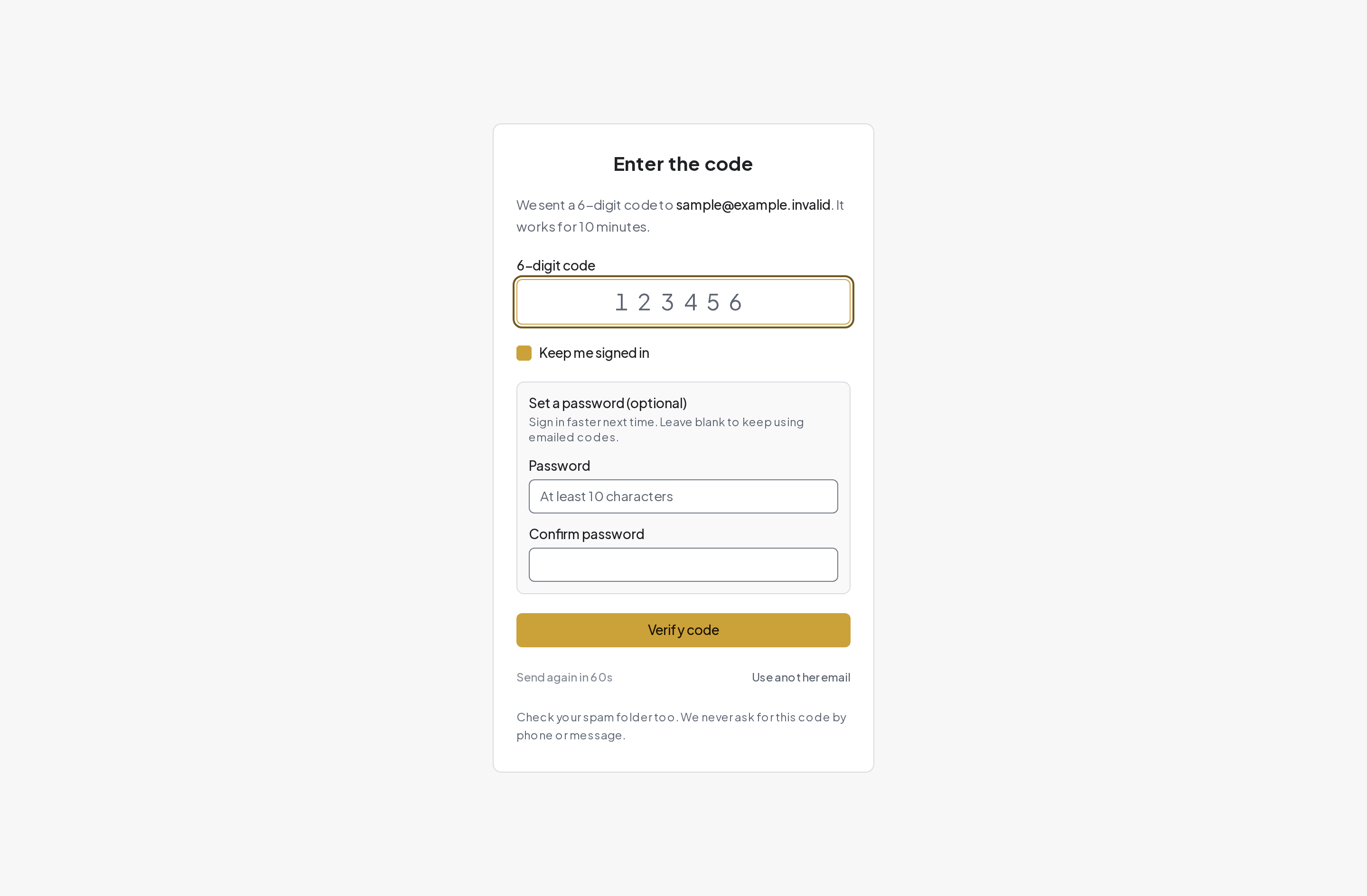
Email verification with a resend countdown. The address is a fictional example.
## 4. Tell us about yourself
After your first sign-in, you may see Tell us a little about yourself. These details help keep your contact information and preferences together.
1. Choose your preferred language for emails: English, Sinhala or Tamil. English is the default when no preference has been saved.
2. Enter your phone number with its country code, select your profession and choose how you plan to use Translate.
3. Select your industry. If your profession or industry is not listed, choose Other and enter it.
4. Select Save details. If you choose Complete later, return to My account to finish the form.
**Note:** Your email preference, the language of the website and the language you translate into are separate choices. Changing an email preference does not translate an existing document.
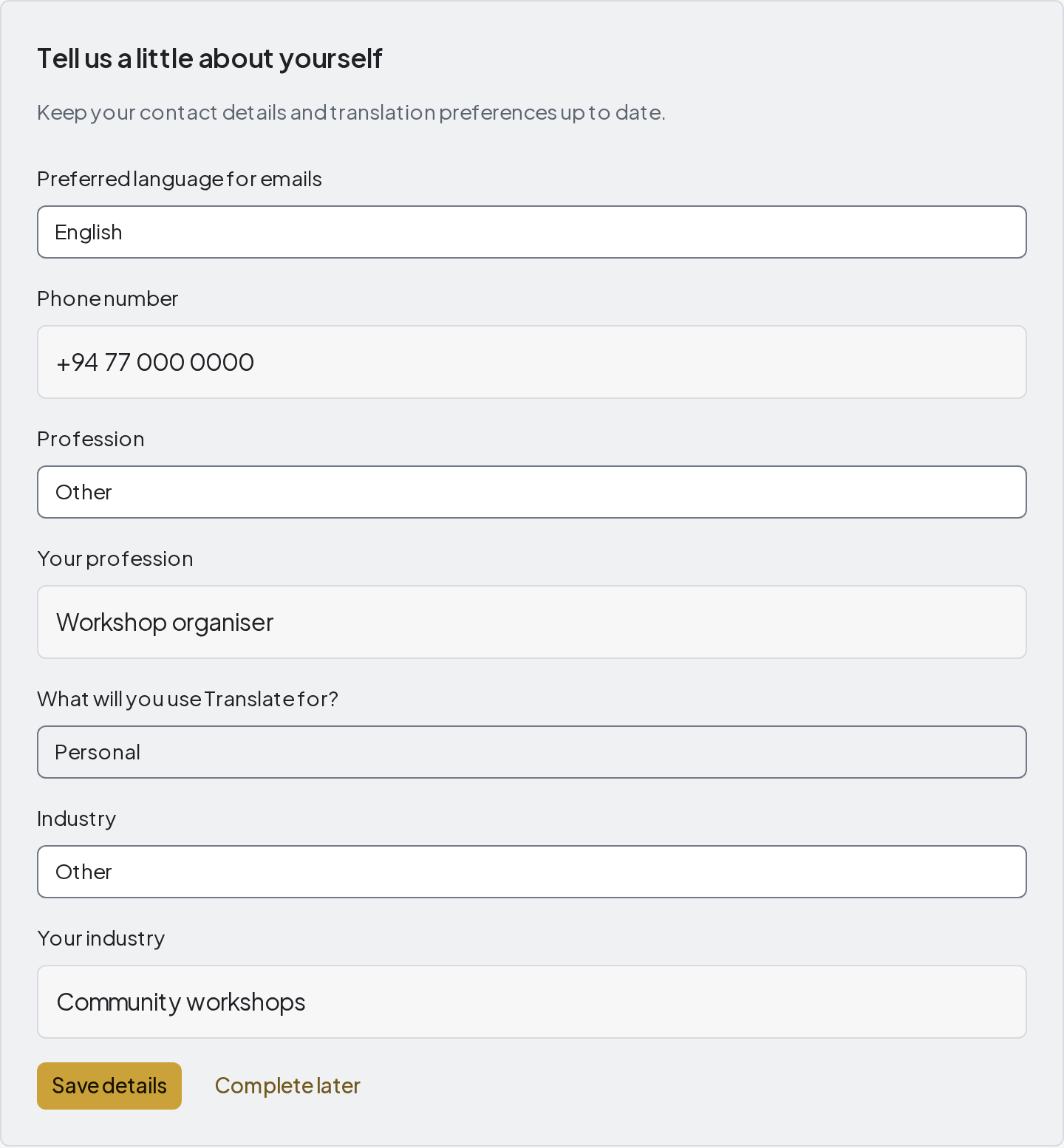
First-sign-in contact and preference form with fictional sample details.
## 5. Prepare a file that is easy to read
A clear original helps the system and any human reviewer understand your document.
1. Use a PDF, a .docx Word file, or a JPG, PNG or WebP photo. The upload dialog accepts files up to 15 MB.
2. For photos, include the whole page, keep it upright, use even lighting and avoid shadows, glare and fingers covering words.
3. For a document with several pages, keep the pages in order. A single clear PDF is often easier to manage than separate photographs.
4. Open the file yourself before uploading. Check that text and small numbers are readable and that no pages are missing.
5. If you have an old .doc file or another unsupported format, save a copy as .docx or PDF in the application that created it.
**Note:** Keep your original file. Translation may change line lengths and page breaks. Stamps, signatures, handwriting, text boxes and complex layouts need particular attention during review.
[Try the fictional sample document](https://mytranslates.com/samples/community-workshop-en.docx)
## 6. Add a document
The Add document button opens the file and language dialog. On a phone, open the menu if the button is not visible.
1. Choose Add document. Drag your file into the upload area, or select the area to browse your device.
2. On a supported phone, Take a photo opens the camera. Allow camera access only if you want to use it.
3. Check the selected filename. Use the replace control if you selected the wrong file.
4. Choose the source and target languages, review the price information, and continue. If you started while signed out, sign in first and select the file again.
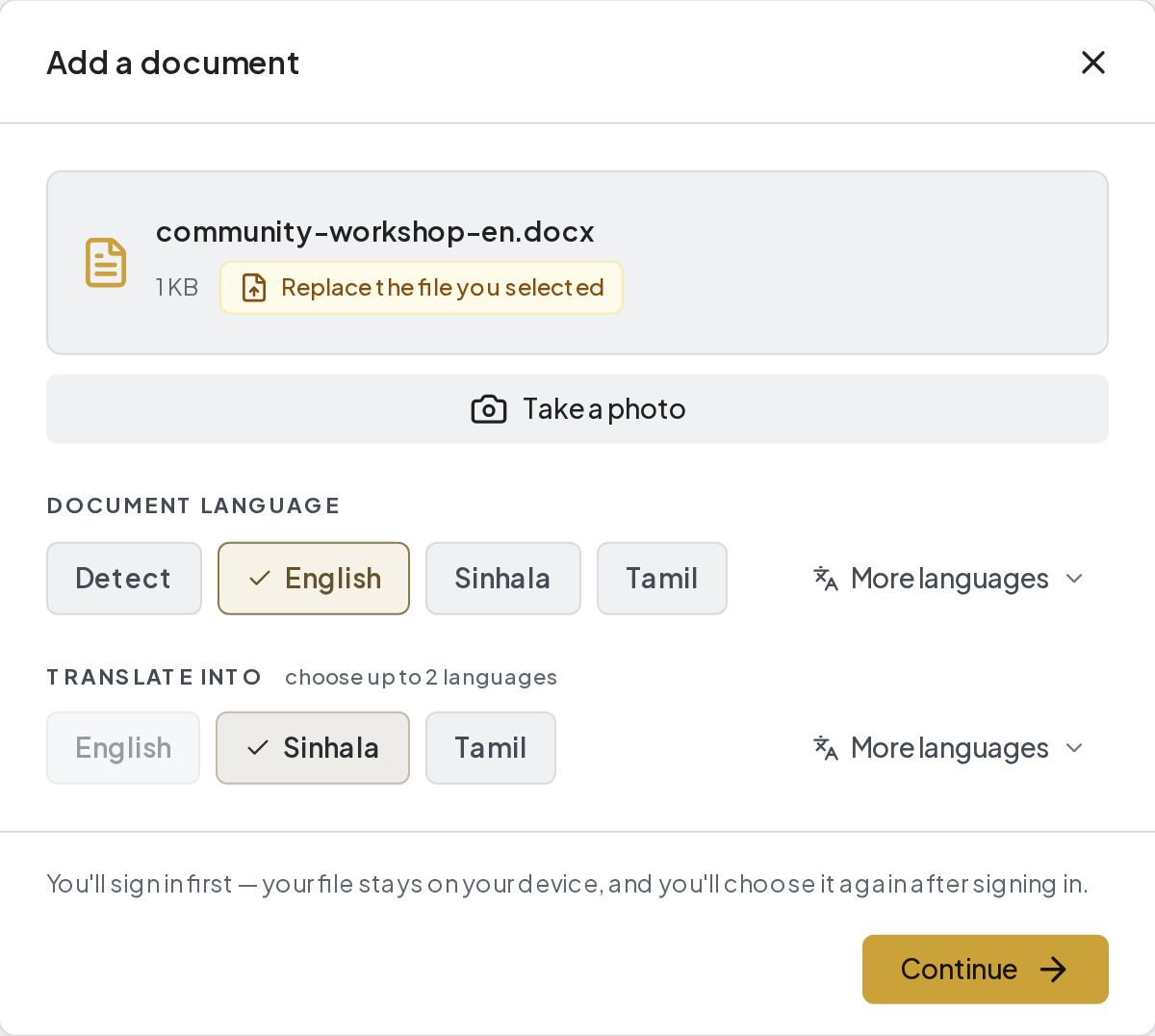
The Add a document dialog with the fictional community-workshop Word file selected.
## 7. Choose the language direction
The source is the language of your original. The target is the language you want to receive.
1. Check the source language. If a detected language is incorrect, use the available language control to correct it before starting.
2. Choose a target language. Use More languages to find an available language beyond the main choices.
3. If the dialog offers a second target language, select it only if you need an additional translation. Review the quote for the selected languages.
4. For a document with more than one completed translation, select the target language you want before editing or downloading.
5. To add another translation later, use Translate again from the document actions when offered, choose a different target, and approve its quote.
**Note:** Available languages and review options are shown in the app. A website language change does not change the source or target of a translation already in progress.
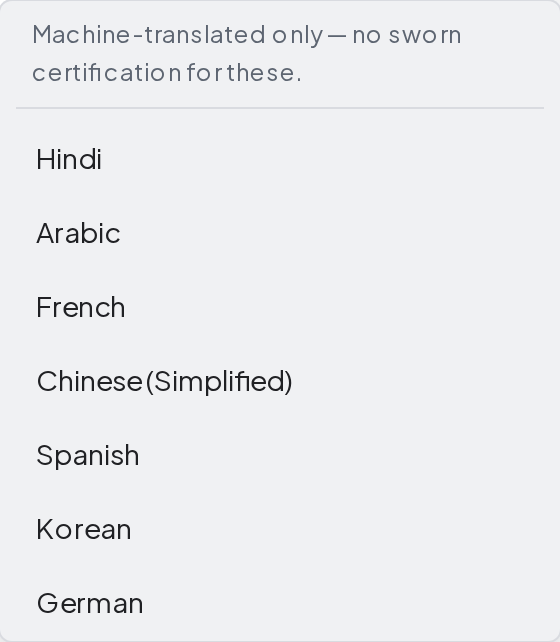
More languages lets you find an available language beyond the main choices.
## 8. Check the quote before continuing
The price depends on the file, text and selected languages. The amount shown in your current quote is the amount to review; example screenshots are not a price list.
1. For a readable Word file, the upload dialog may show an exact price with Approve [amount] & continue.
2. For PDFs and photos, the first figure may be an estimate. The system reads the file, then shows an exact price for approval if required.
3. Check any translation and reading charges. The interface explains whether your allowance or balance covers them and whether payment is currently required.
4. If your balance is short, use the Top up or billing link shown. Return to the document after arranging funds.
5. Approve only when the file, language direction and amount are correct. If an exact quote is still needed on the next screen, follow that prompt.
**Note:** Do not assume every PDF has a reading charge or every account has a free allowance. Use the quote and account information displayed for your document.
## 9. Follow reading and translation progress
Reading extracts words from a file. Translating produces the draft in your selected language. These are different stages.
1. Watch the status and progress text. A scan can spend time in Reading before translation starts.
2. If a price approval or terms prompt appears, complete it before expecting the translation to proceed.
3. Once background processing has started, you can leave the page and return through My documents. Do not upload the same file again just because it is still running.
4. When the status becomes Draft ready, open the document and review it. If processing fails, follow the retry message or contact support with the document title and error.
**Note:** An estimate is not a guaranteed completion time. Draft ready means a machine draft is available; it does not mean a sworn translator has reviewed it.
## 10. Find and organise your documents
My documents is your document library. Open a record to return to its progress, draft, downloads and review options.
1. Use the search field to find a document by its title.
2. Use the available status filters to focus on saved, in-progress or completed work. Some filters appear only when there are enough records.
3. Open the document row or card. Use its actions menu for options such as rename or archive when available.
4. Choose a meaningful name that helps you distinguish versions, people or matters without opening every file.
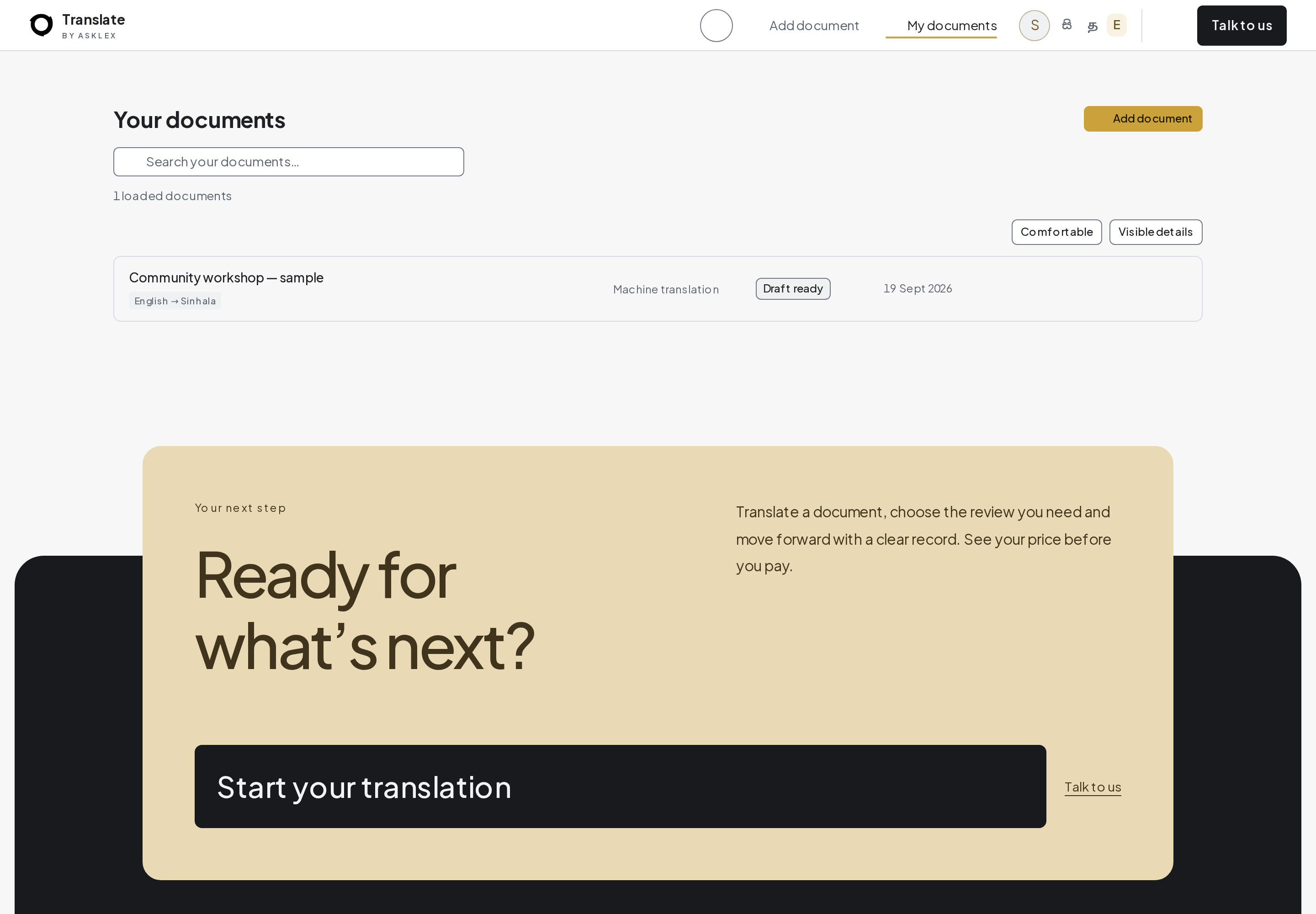
My documents showing one fictional sample. A larger library can show additional filters.
## 11. Read the translated draft
Reading gives the translation more room. It is useful when you want to read the document naturally or use a smaller screen.
1. Open the document and select the language you want to review.
2. Choose Reading above the text.
3. Read from beginning to end. Check headings, paragraph order, names, dates, numbers and any omitted words.
4. Use Copy translation to copy the text. Use Export reading PDF if you want a PDF of this reading layout.
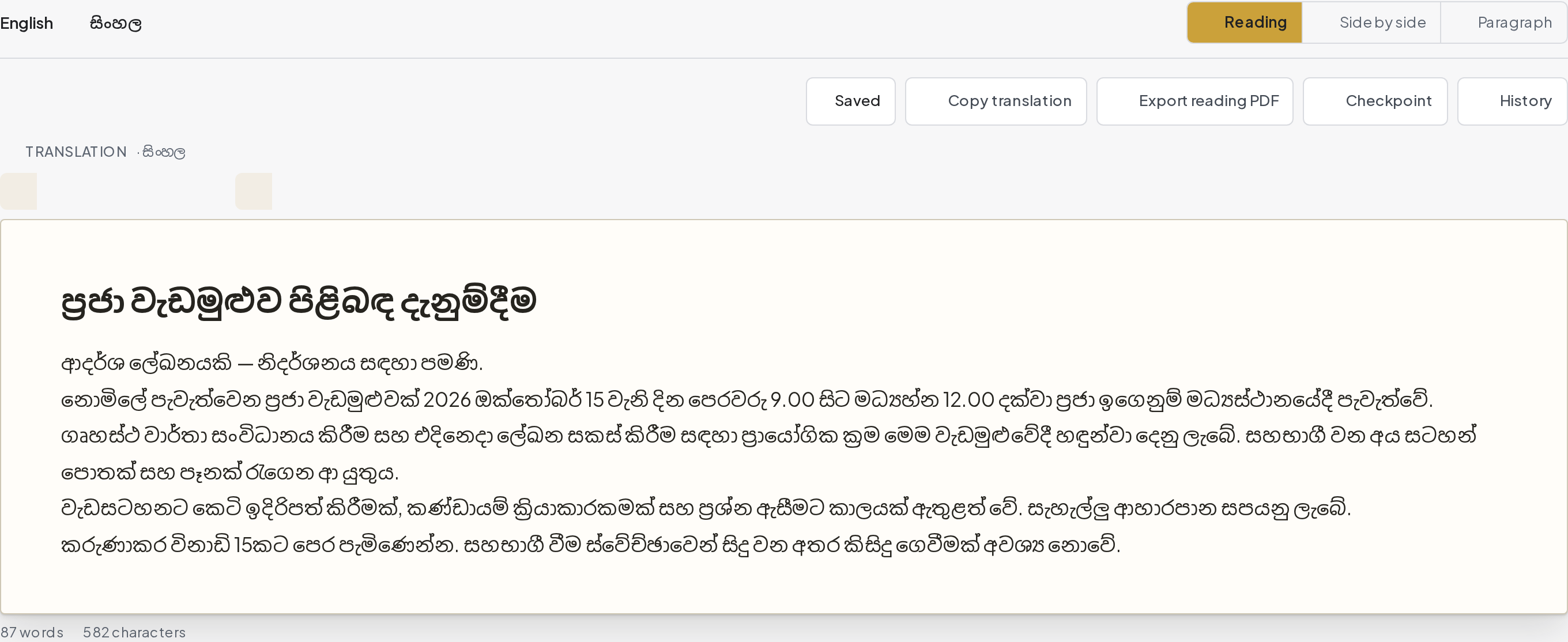
Reading view gives the translated document a single reading area.
## 12. Compare the original and translation
Side by side places the source and translation next to each other so you can compare their meaning.
1. Choose Side by side above the document.
2. Compare the source on the left with the translation on the right. Work through the document in order.
3. Pay special attention to names, amounts, dates, reference numbers, conditions and negative words such as “not”.
4. If the columns feel narrow on a phone, rotate the phone, choose Reading or use Paragraph view. A wider screen is useful for detailed comparison.
5. Choose Export side-by-side PDF to download the comparison layout. This is different from downloading only the translated document.
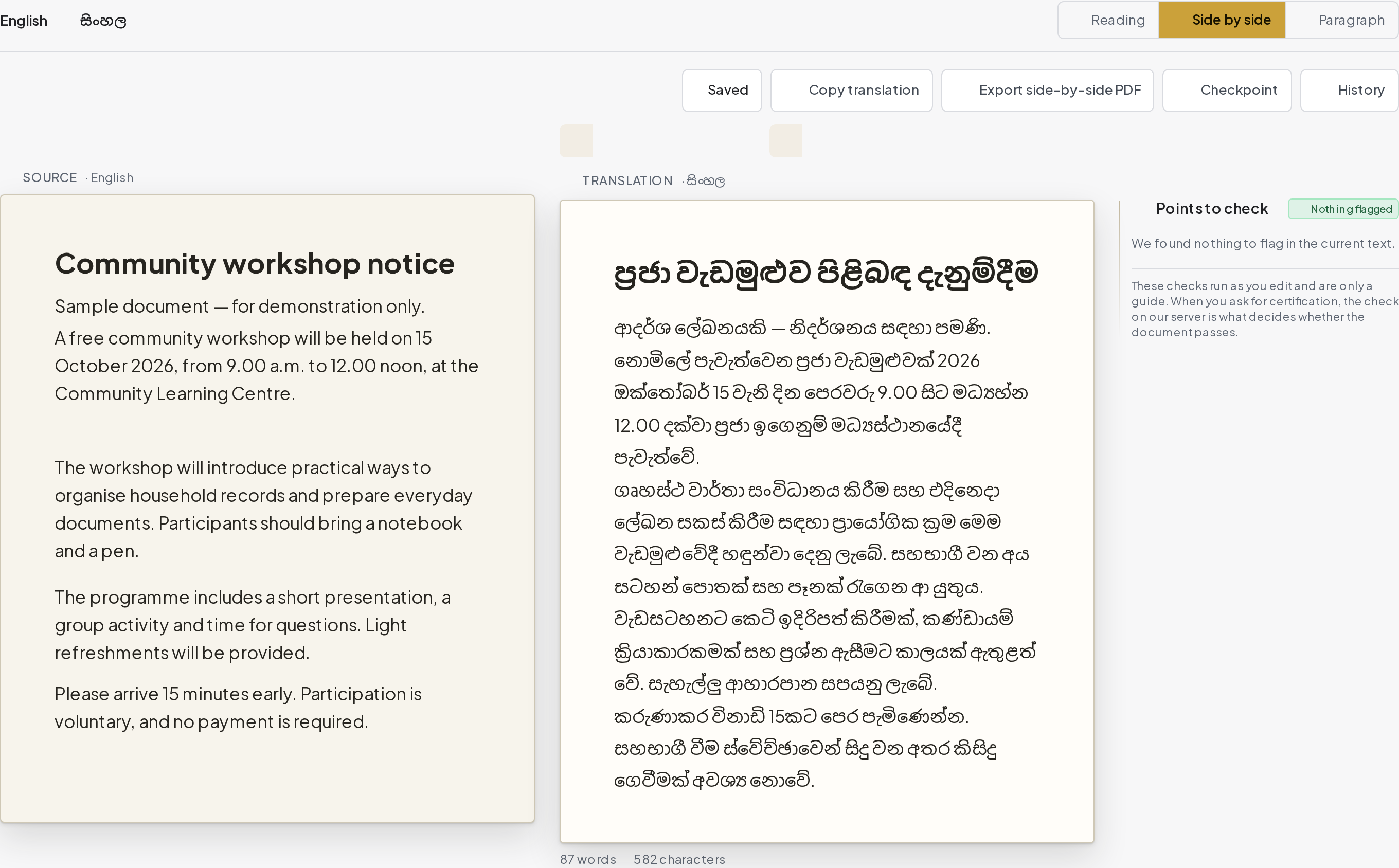
The real comparison interface with a fictional English source and Sinhala translation.
## 13. Review one paragraph at a time
Paragraph view helps you concentrate on smaller parts of a long document.
1. Choose Paragraph above the document.
2. Use Next and Previous to move between paragraphs, or Find in paragraphs to search.
3. Use the editing controls offered for that paragraph, then wait for the save result before moving on.
4. Use Accept & next to mark a paragraph reviewed. This does not certify the document. To export a review PDF, switch to Reading or Side by side and use its export button.
**Note:** Available editing actions depend on the document’s state and your permission. A sealed or otherwise locked record cannot be treated as an editable draft.
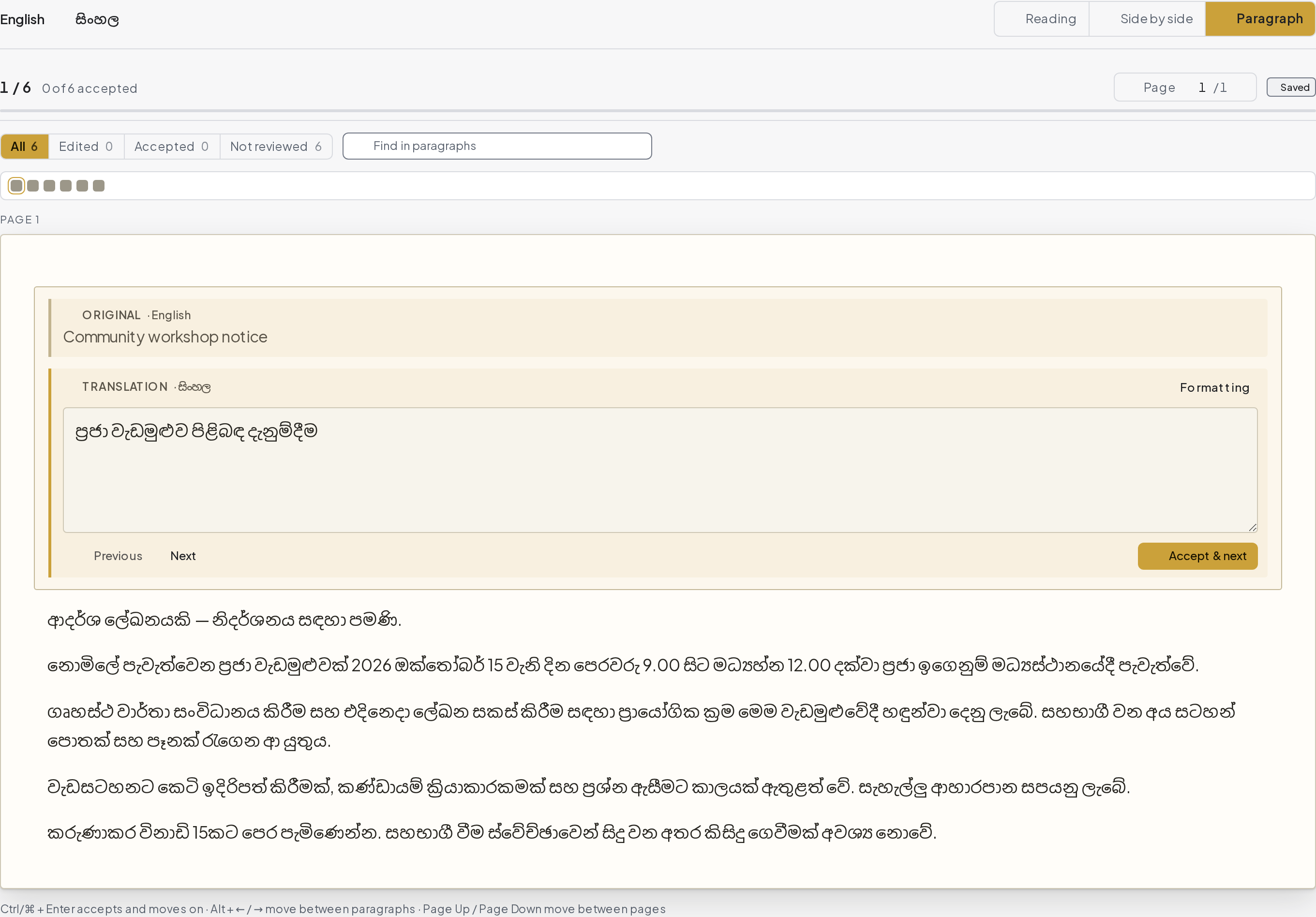
Paragraph view shows the document in sections for focused review.
## 14. Edit, save and check suggestions
An editable draft can be corrected before you decide what to do with it. The save indicator tells you whether your latest changes have reached the server.
1. Click the editable translated text or the paragraph editing control. Correct the wording while preserving the original meaning.
2. Use formatting controls when available for headings, emphasis or alignment. Avoid adding or removing source sections unintentionally.
3. Wait until the indicator says Saved before closing the page, sharing or exporting your final copy.
4. Open Suggestions or Points to check to review flagged numbers, years, clause numbering or wording. These checks help you review; they do not guarantee accuracy.
5. Open Properties in the workspace panel to see available document information, language versions and file details. On smaller screens, use the panel controls to reveal it.
**Note:** If saving fails or the app reports another edit conflict, keep a copy of your unsaved text and follow the recovery prompt. “Nothing flagged” is not the same as “reviewed by a sworn translator”.
## 15. Keep checkpoints and use history
Autosave keeps your current draft. A checkpoint keeps a named point that you can compare with or restore later.
1. Wait for Saved, then choose Checkpoint.
2. Give it a short name such as “Names checked” and confirm the checkpoint.
3. Open History to see saved checkpoints and the actions available for them.
4. Compare a checkpoint with the current draft before restoring. Save a checkpoint of your current work first if you may need to return to it.
5. Restore only when you want the older checkpoint’s content brought into the draft. Review and save the result.
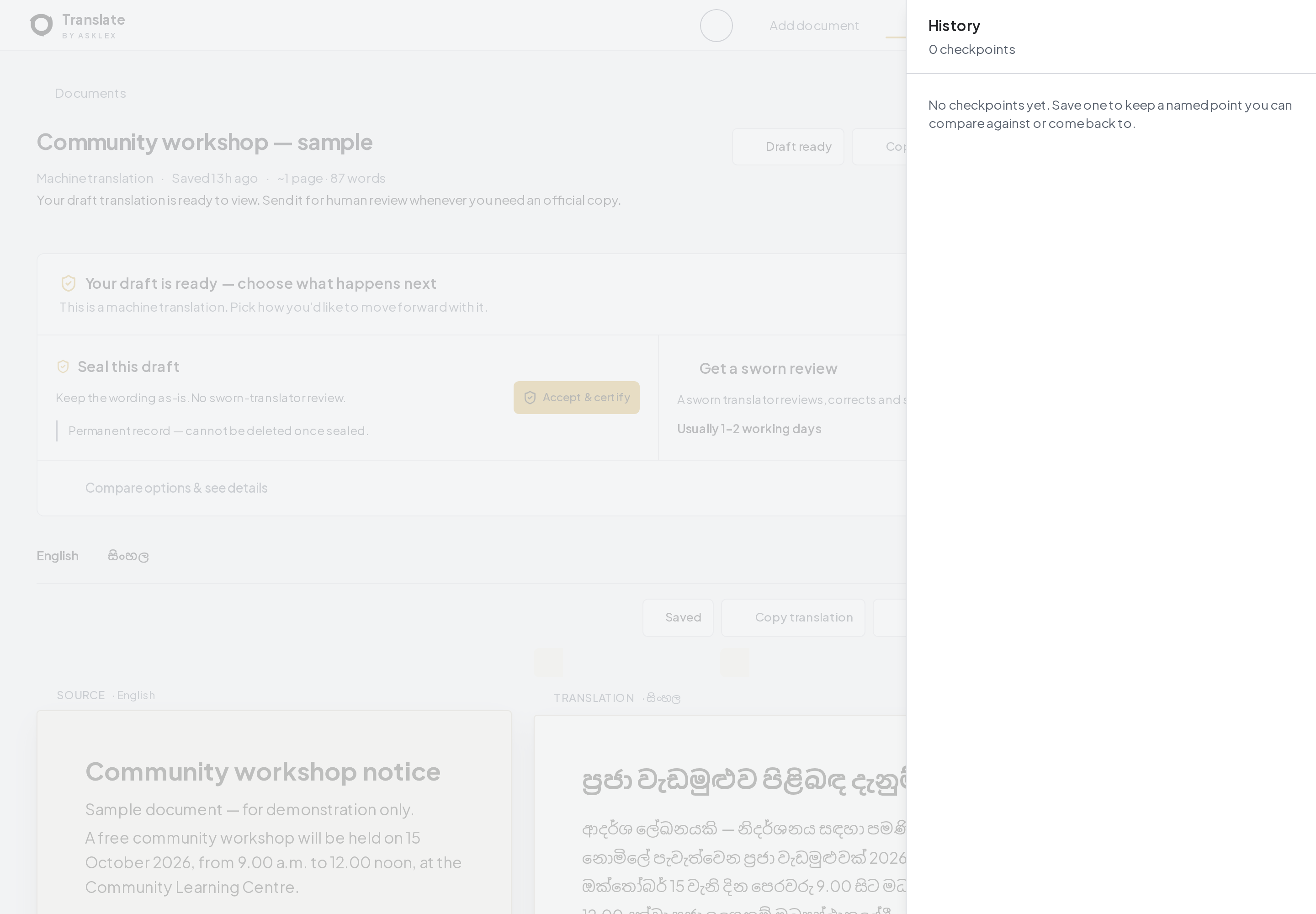
History opens beside the document. A new sample has no saved checkpoints yet.
## 16. Download the right file
The controls near the document title download document files. Export reading PDF and Export side-by-side PDF export those review layouts.
1. Check the selected target language and wait for Saved.
2. Use Download translation near the title for the translated PDF. Open its arrow, More download formats, for other formats. Some workspaces label this menu Download files.
3. Use the export button inside the reading or comparison workspace for a PDF of that view.
4. Open the saved file and check its language, page breaks, tables and complete text before handing it over.
5. Keep the descriptive filename. Downloads use the document name and applicable language/layout information to help distinguish them. Your browser may also add a number when a file with the same name exists.
| What you need | Which option to use |
| --- | --- |
| Only the translated document | Download translation / translated PDF near the title. |
| Original and translation together | Side by side → Export side-by-side PDF. |
| The reading layout | Reading → Export reading PDF. |
| A comparison after paragraph review | Finish the review, switch to Side by side, then export its PDF. |
| An editable Word document | The Word option in More download formats / Download files. |
| Your uploaded Word layout | Original-layout Word, when the original is a supported stored .docx. |
| The unchanged uploaded file | Download original, when a stored original is available. |
| A certificate or certified bundle | The certificate/bundle download offered after the relevant certificate is issued. |
**Note:** Original-layout Word preserves parts of the uploaded structure, but headers, footers, footnotes or text boxes may remain in the source language. Read any warning and inspect the exported file. A draft export is not a sworn certificate.
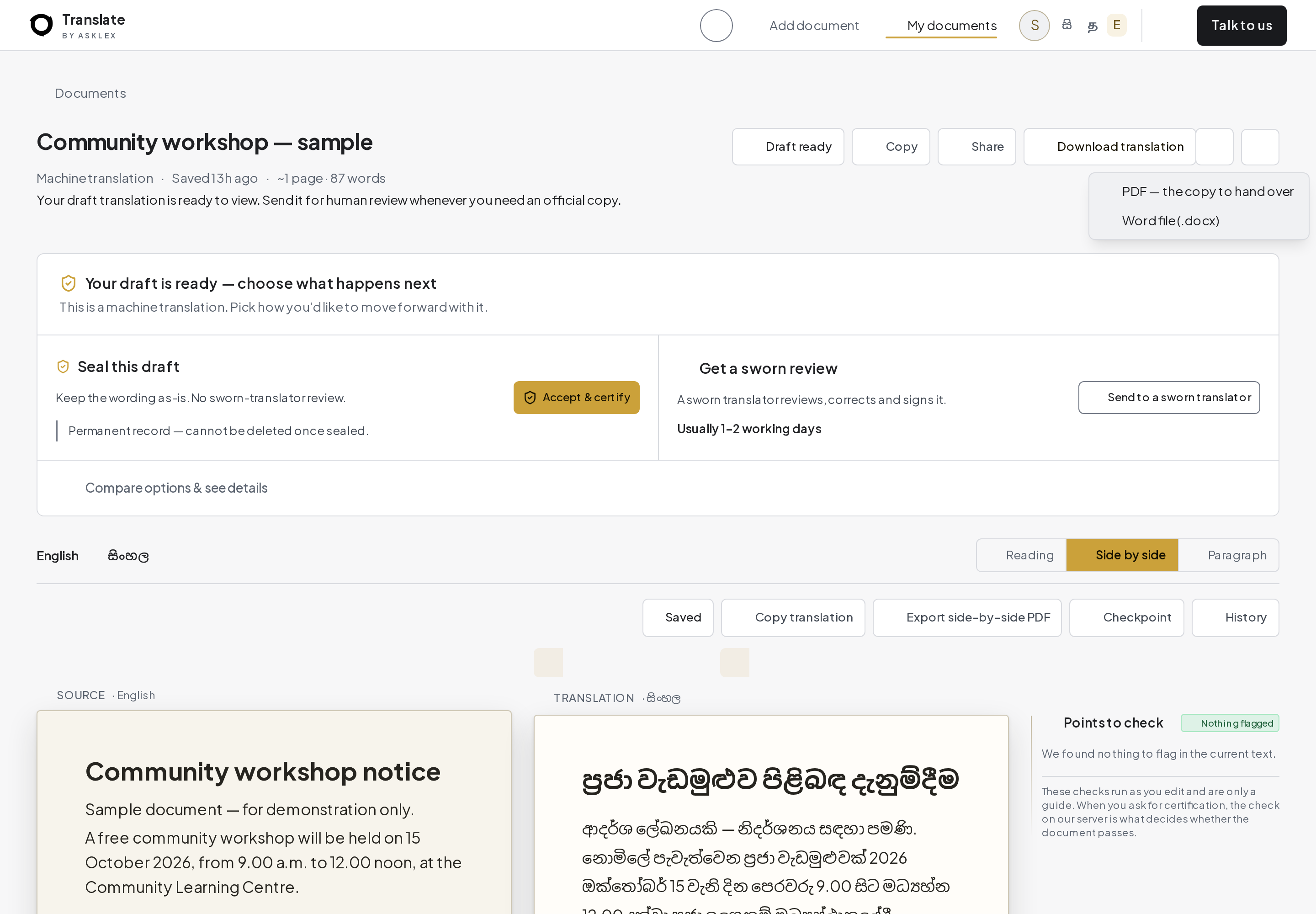
The file download menu. Available formats depend on the document and its certification state.
## 17. Share a document safely
Sharing creates controlled access to a document. It is different from emailing a downloaded attachment.
1. Open the document, choose Share, then New link.
2. Choose what the recipient can see: the certificate, translation or full document. Full document includes originals and every version. Then choose View only, Can comment or Can suggest edits.
3. Set an expiry date or duration, choose whether downloads are allowed, and add a passcode if required.
4. If the form asks for a recipient’s email for an invitation, check it carefully. Give the passcode separately; it is not included in the invitation email.
5. Create the link only after checking these choices. Send it to the intended recipient and use the Sharing panel to revoke access when it is no longer needed.
**Note:** Revoking a link prevents future access through it; it cannot take back a file someone has already downloaded. Use the smallest permission needed.
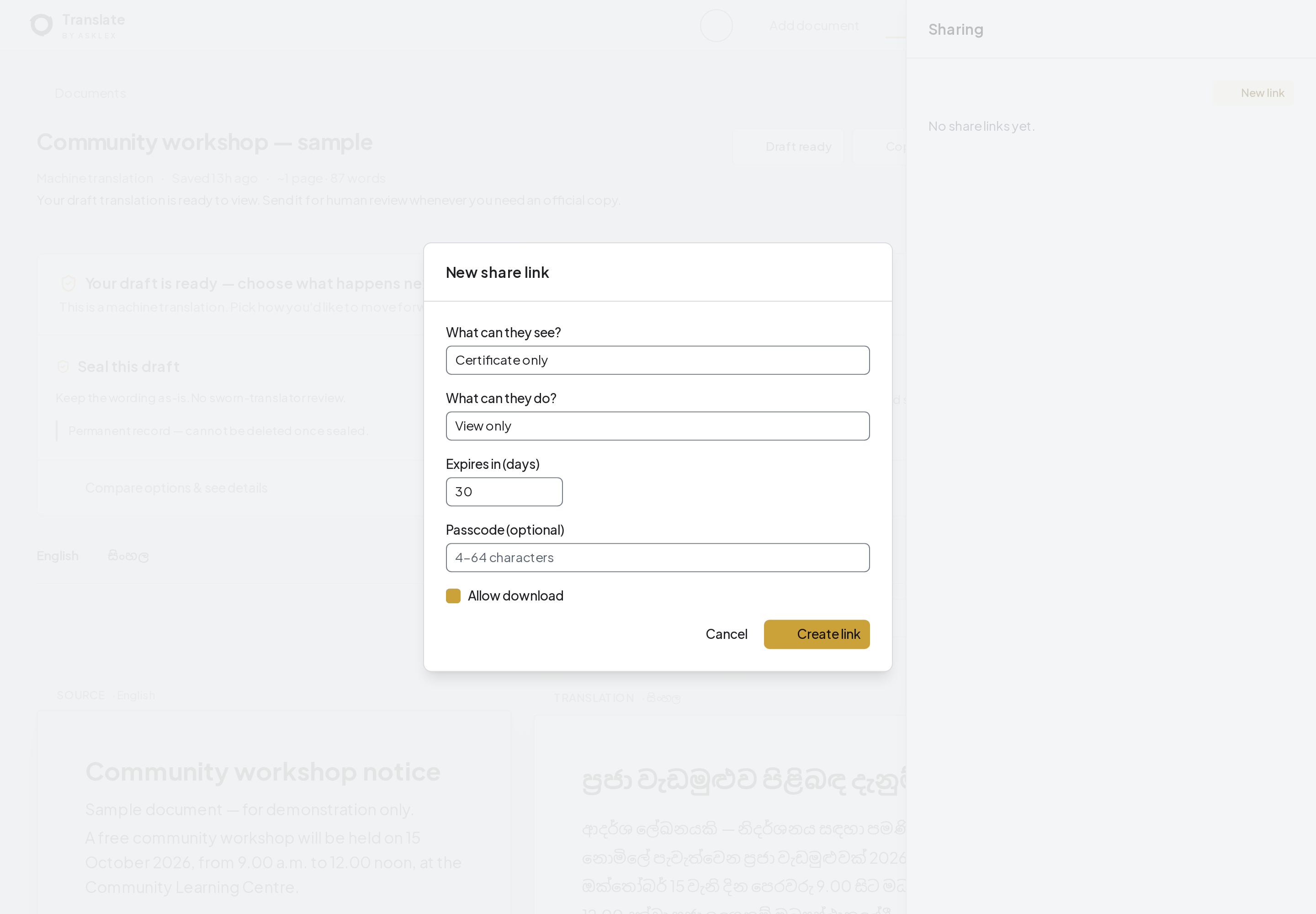
Sharing options for a fictional document. No link or invitation was actually created.
## 18. Choose what happens after Draft ready
The next-step panel offers two different outcomes. Open Compare options & see details when you want the fuller explanation.
| Choice | What it means |
| --- | --- |
| Seal this draft — Accept & certify | Seal the current wording as a digital record, without sworn-translator review. The result has a verifiable serial. |
| Get a sworn review — Send to a sworn translator | A sworn translator reviews, corrects and signs the translation through the review process. |
| Keep reviewing or download a draft | Continue checking the editable draft or download it without claiming it is a sworn-certified translation. |
**Note:** Choose according to the receiving organisation’s requirements. The digital seal and sworn review are different services, and a QR code alone does not establish which kind of review happened.
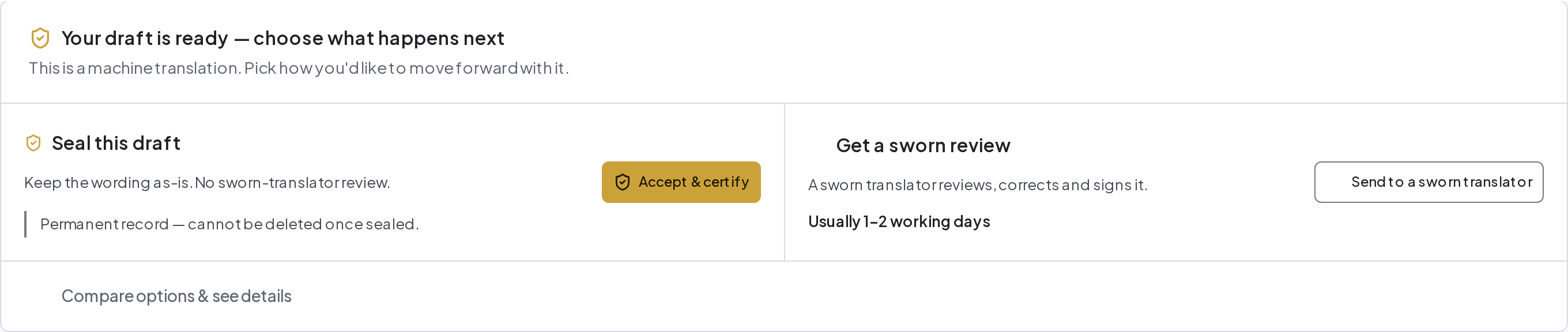
The two next-step choices, with a details link. Digital sealing is marked as a permanent record.
## 19. Accept and certify the digital copy
This option seals the draft as it stands. It does not add a sworn translator’s review.
1. Check the complete wording, selected language and document identity first. Finish all edits and wait for Saved.
2. Choose Accept & certify in Seal this draft.
3. Read the confirmation and the permanent-record explanation. Proceed only if this is the service you want.
4. If the automatic checks refuse sealing or the document requires sworn review, follow the explanation rather than trying to bypass it.
5. After a successful seal, keep the serial and use the available certificate/download controls.
**Note:** Once sealed, this document is retained as a permanent record and cannot be deleted through the ordinary draft workflow. Do not seal a draft you still need to change.
## 20. Send the draft for sworn review
Use this option when you need a sworn translator to review, correct and sign the translation.
1. Choose Send to a sworn translator in Get a sworn review.
2. Read the confirmation, current estimate and any quote or payment prompt. Confirm only after checking the details.
3. Follow progress in the document and your notifications. Respond if clarification or a better original is requested.
4. When the signed result is ready, inspect the final translation and download the certificate or bundle offered by the document.
5. Check that the serial, language pair and document details match before providing it to the recipient.
**Note:** Use the estimate displayed in your account; review times and availability can vary. Confirm the receiving authority’s requirements for electronic copies, signatures and originals before ordering.
## 21. Verify a serial or QR code
Certificate verification is public and does not require a sign-in.
1. Choose Verify a certificate, or scan the QR code printed on the certificate.
2. If entering a serial manually, copy it exactly and start verification.
3. Read the result, certificate type, language pair and signer information that are actually shown. Compare them with the document in front of you.
4. If the serial is not found, check for a typing error. If the record is revoked, invalid or does not match, contact support before relying on it.
**Note:** The screenshot is a SPECIMEN with serial DEMO-NOT-VALID. It is not an issued certificate, and its QR code must not be used as proof. Certification is checked online, not confirmed by phone, SMS or WhatsApp.
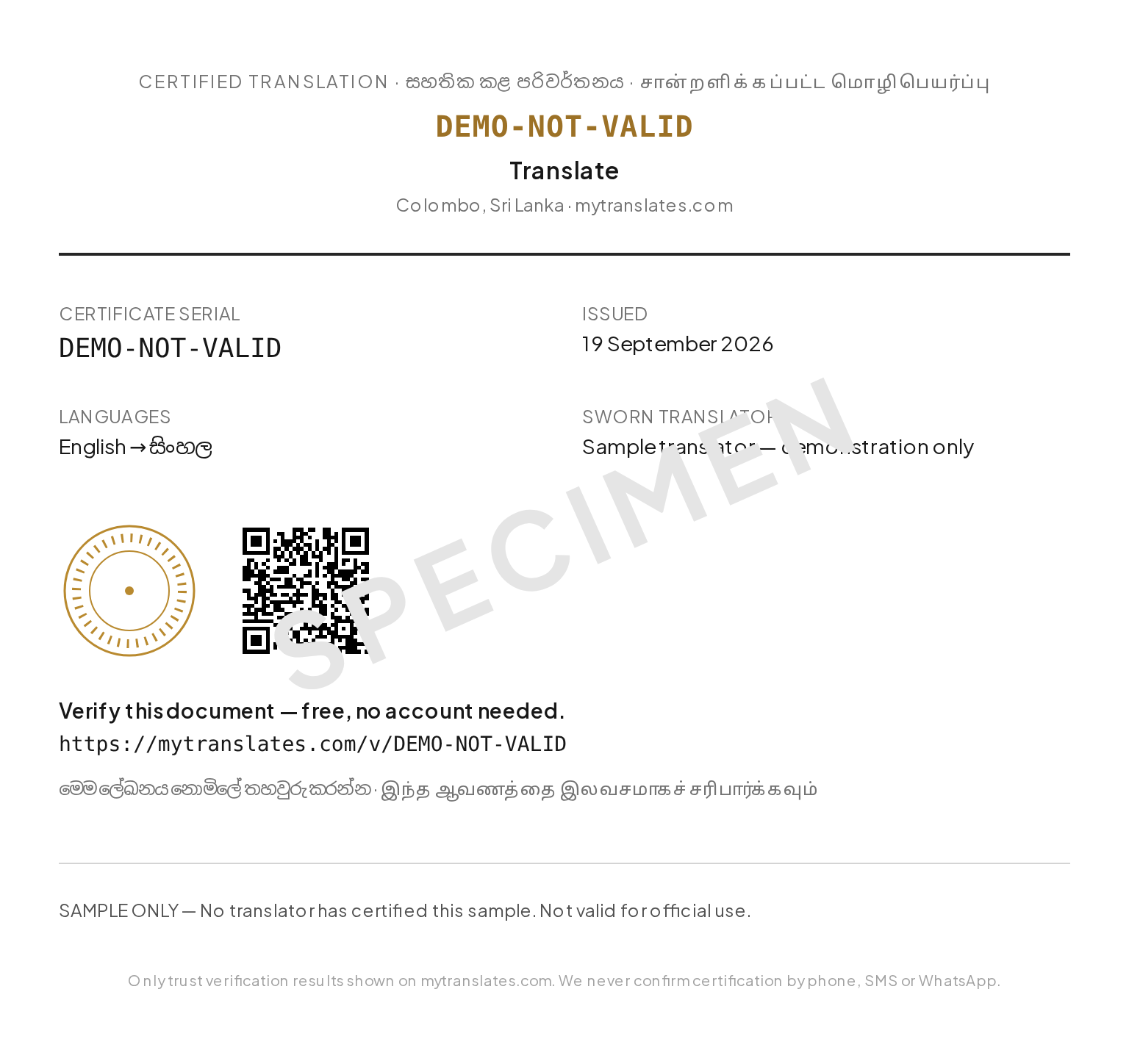
Illustrative certificate with a QR code and prominent SPECIMEN watermark. No certificate was issued for this sample.
[Open certificate verification](https://mytranslates.com/v)
## 22. Check a certificate: step by step
You can check a certificate without uploading the document or creating an account. The verification result shows the record, not the document’s private contents.
1. Open mytranslates.com/v, or choose Verify a certificate in the site navigation.
2. For a printed certificate, open your phone camera, point it at the QR code and open the link. Check the website address before trusting the result.
3. For a manual check, find the certificate serial on the document. Type or paste the entire serial into Certificate serial, then select Check.
4. Compare the returned serial, source and target languages, issue date, certificate class and signer details with the copy you received. A digital machine seal must not be mistaken for a sworn translator’s signature.
5. Read the status and integrity checks. A successful check relates to the submitted translation record; it does not prove that the underlying original document is authentic.
**Note:** A certificate screenshot or a green mark copied into a document is not a live verification result. Check the online record yourself. Old certificates may link to translate.lex.lk, which remains a supported site.
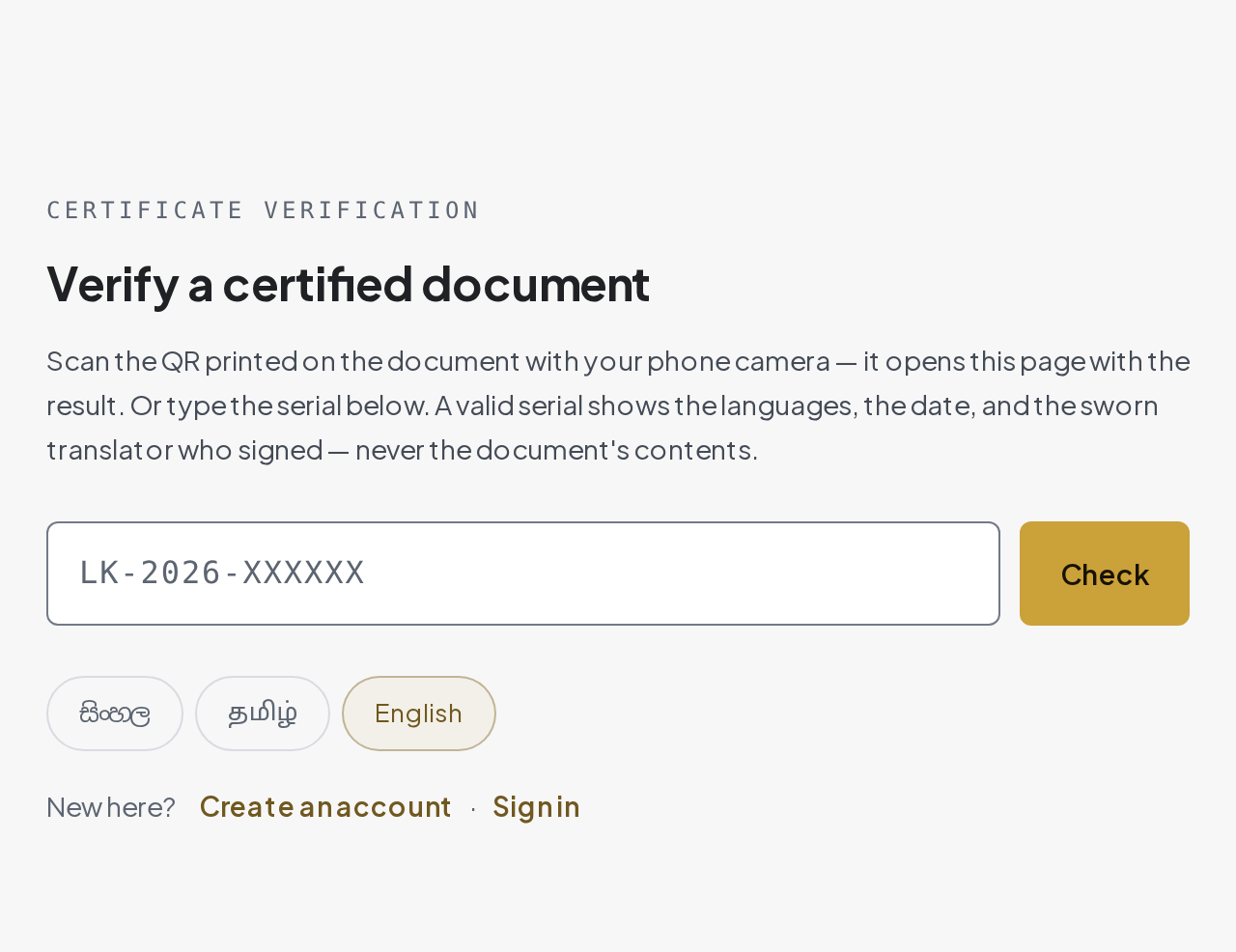
The public verification page: enter the certificate serial and select Check, or scan the QR on the certificate.
[Check a certificate now](https://mytranslates.com/v)
## 23. Understand the verification result
Read the words in the result, not just its colour. The action depends on the certificate class, current status and whether its integrity checks pass.
| Result or detail | What to do |
| --- | --- |
| Active / valid checks | Match the serial, language pair, date and signer with your copy. Check whether it is a digital machine seal or sworn certification. |
| Machine seal | This records a machine-checked digital copy. It is not evidence that a sworn translator reviewed or signed it. |
| Sworn certification | Check the named translator and the registration details shown, as well as the serial and document details. |
| Not found | Check the serial for a typing error. Ask the sender for the correct certificate if it is still not found. |
| Revoked | Do not accept this as a current certificate. Ask for a current one. |
| Superseded | A newer certificate replaces this one. Obtain and verify the newer certificate. |
| Disputed / under review | Contact support before relying on it. |
| Document, signature or record checks fail | Do not rely on the result. Ask for clarification and contact support. |
**Note:** This screenshot intentionally uses a made-up serial to show the not-found state. It is not a failed customer certificate. For official use, the receiving organisation decides which type of certification it requires.
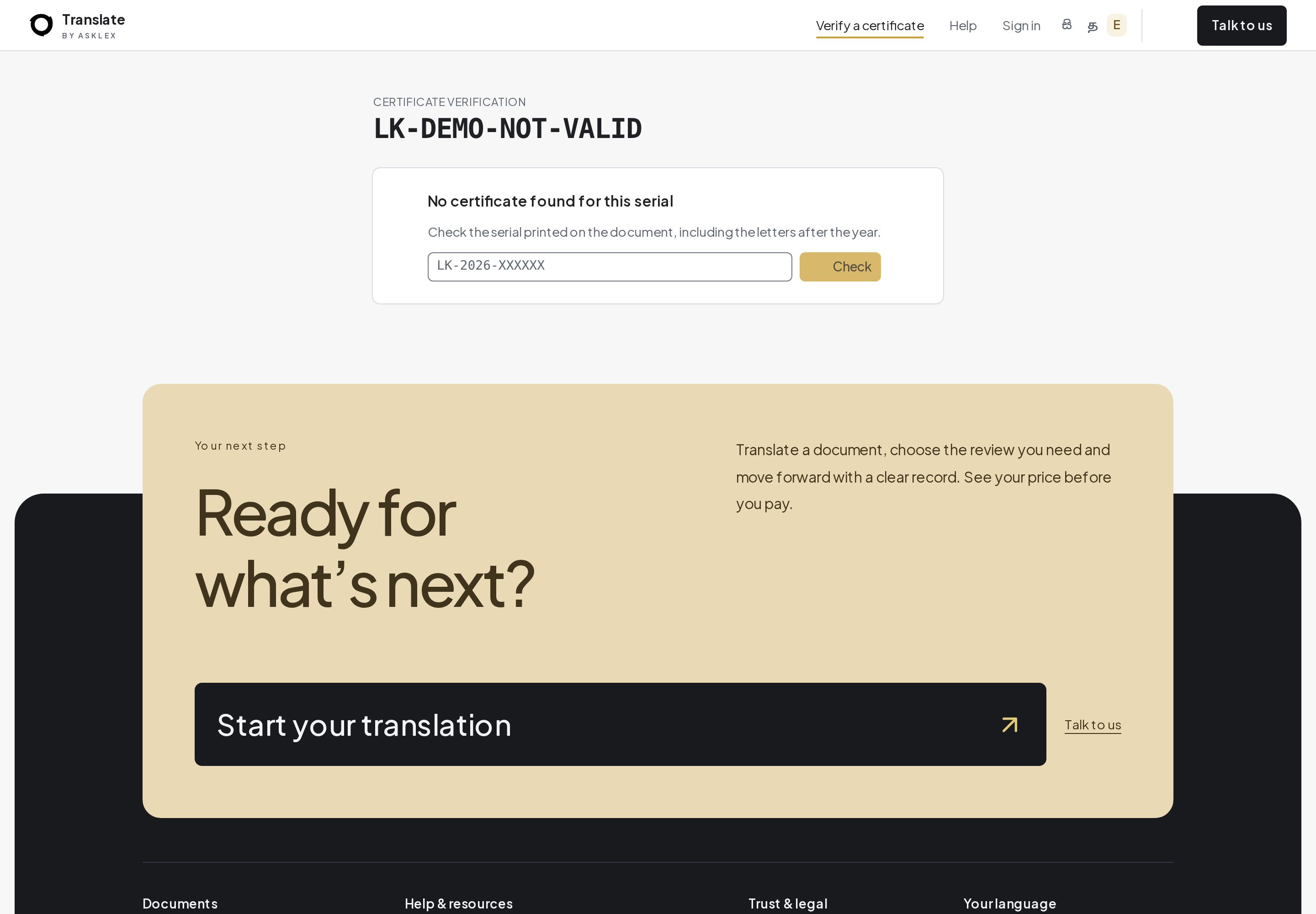
Example not-found result for the fictional serial LK-DEMO-NOT-VALID.
[Ask support about a verification result](https://mytranslates.com/support)
## 24. Archive, restore or delete
Archiving helps organise your library. Deletion is a separate action and is not available for every document.
1. Open the document’s actions menu and choose Archive when offered.
2. Find archived documents using Archived in the library, and use the restore option when available.
3. If Delete is offered, read its confirmation carefully. Make sure you have saved anything you need before confirming.
4. If a record cannot be deleted because it has been sealed or retained, contact support about your concern rather than assuming archive removes the permanent record.
**Note:** Archiving does not cancel a translation job, revoke a certificate or remove copies already shared with other people.
## 25. Review charges, orders and notifications
Your account menu gives access to Billing & orders. The document’s own status remains the place to check its progress.
1. Open the account menu, then Billing & orders to inspect your balance and available charge/history information.
2. Use the top-up options shown if you need to add funds. Follow the payment provider or arrangement instructions displayed in your account.
3. Open an order or receipt when available and compare its document, amount and status with what you expected.
4. Check notifications for completed work or requests that need your attention. Open the linked document before taking an action.
5. If a charge or payment looks wrong, contact support with the order or receipt reference. Do not send card details or passwords.
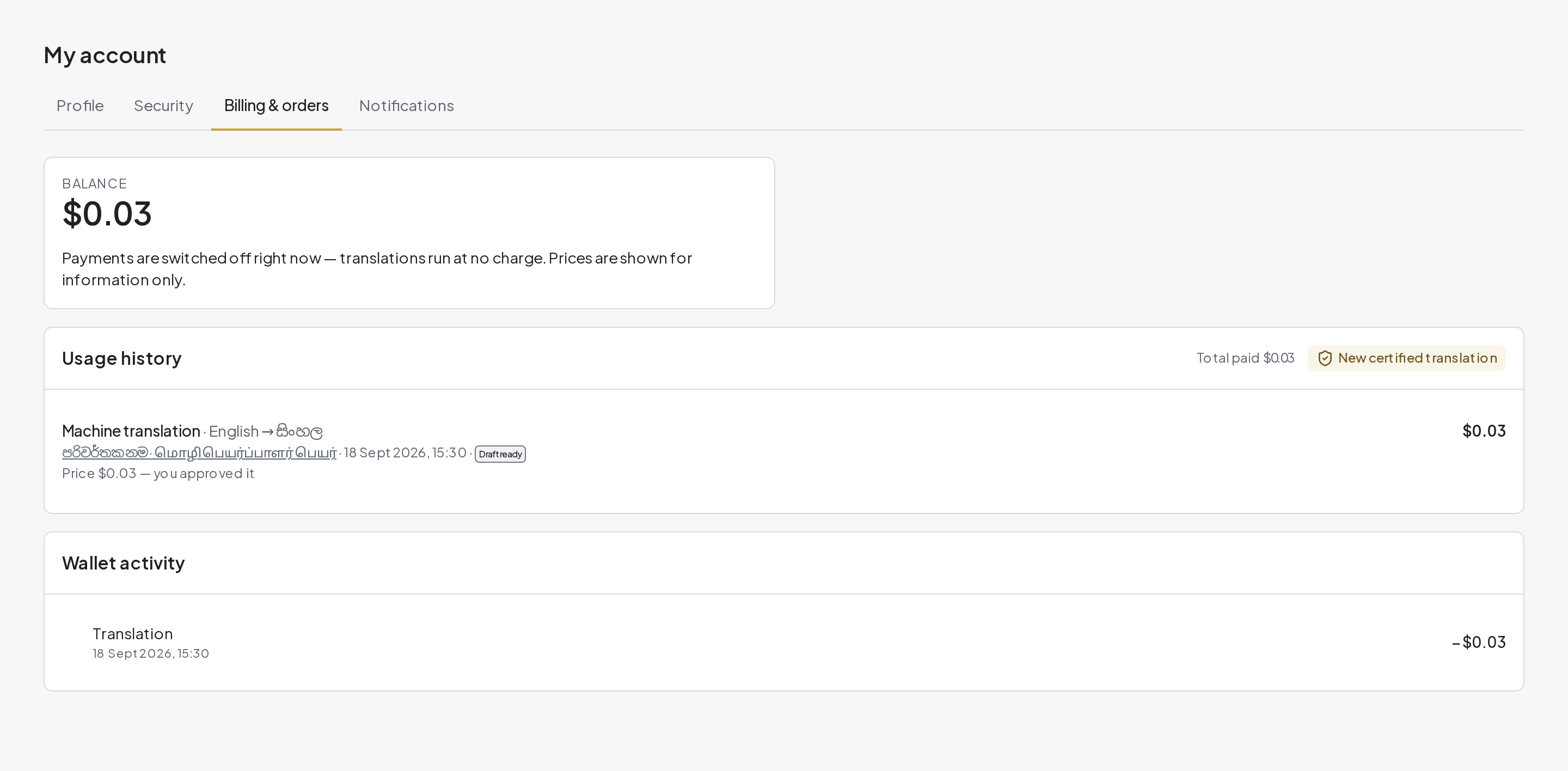
Billing & orders with fictional account data. The amounts are examples, not current prices.
## 26. Change your profile and email language
Open My account to keep your name, contact details and preferences current.
1. Update your name and select Save.
2. Choose the preferred language in the profile’s language section and wait for the saved confirmation. Account emails use this preference; messages already delivered are not changed.
3. Update your phone number, profession, personal/business purpose and industry in Contact & work details, then save.
4. Use the site’s language buttons to change the interface. Use the theme control to switch light/dark appearance.
5. If you need developer access or want to apply as a translator, use the corresponding account option. These areas require their own approval and are outside the customer translation workflow.
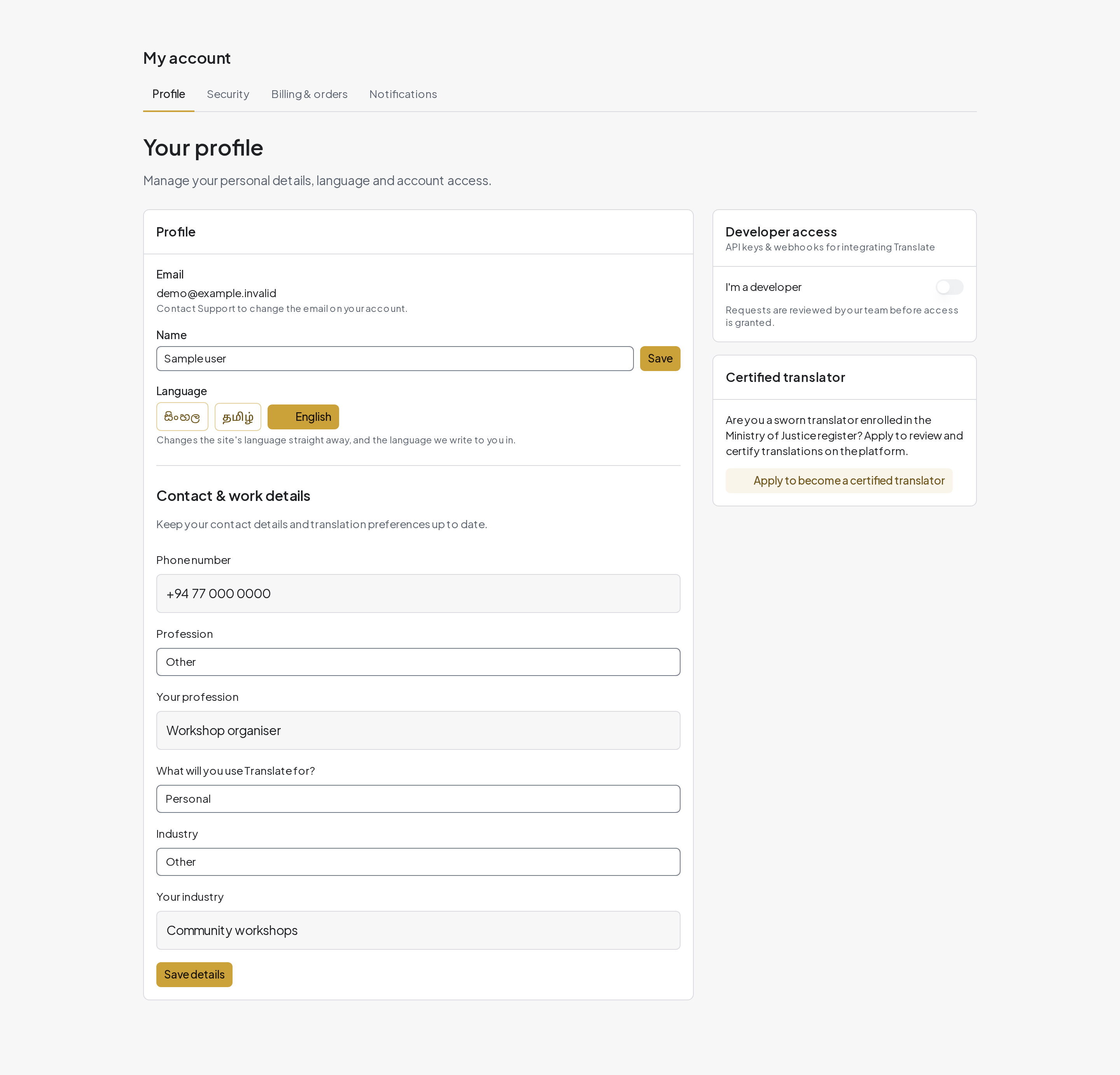
My account contains profile, language and contact/work preferences.
## 27. Manage passwords and signed-in devices
Use the Security page to review your account’s access and translation terms.
1. Read and accept the Translation terms when the app asks you to.
2. Under Signed-in devices, review the listed sessions. The current session is marked This device.
3. Sign out a session you no longer use, or choose Sign out everywhere else and confirm if you want to remove the other sessions.
4. Use the password section to set or change your password if it is available for your account. Complete any verification it requires.
5. If you want to close the account, use Request account deletion and read its explanation of retained records before continuing.
**Note:** Signing out another device ends its session; it does not delete your documents. Always sign out after using a shared computer.
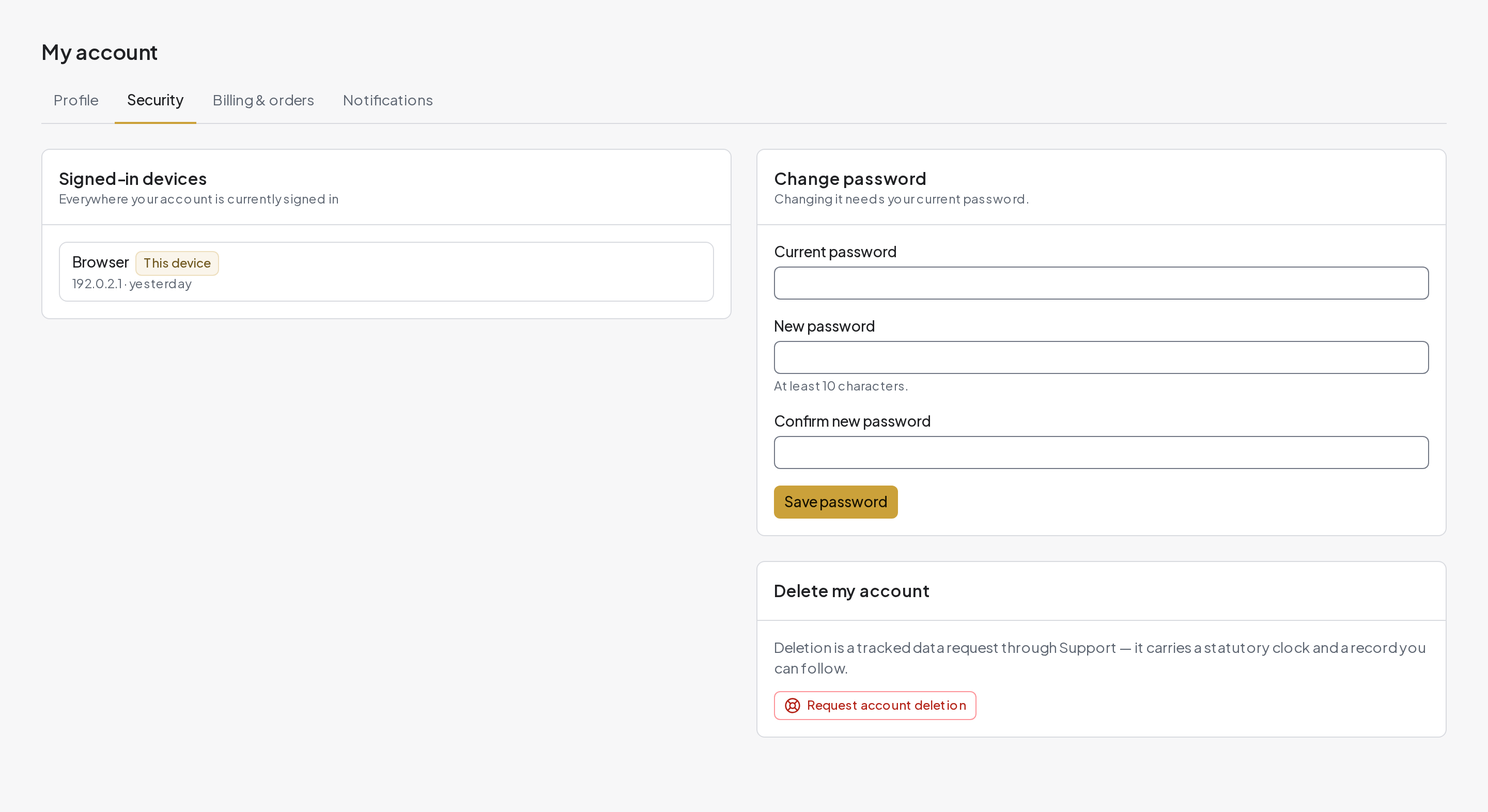
Security shows translation terms, signed-in devices and available password controls using a fictional account.
## 28. Use Translate on a phone or with a keyboard
The same account and documents work across your devices.
1. On a phone, open the header menu for navigation. Use Take a photo in Add document when you want to capture a page.
2. Use Reading for a wider text area; use Paragraph for focused checking. Rotate your phone or move to a larger screen for detailed side-by-side work.
3. Look in your browser’s Downloads or your phone’s Files app after exporting. Allow downloads if the browser asks.
4. With a keyboard, use Tab and Shift+Tab to move between controls, Enter or Space to activate them, and Escape to close supported menus and dialogs.
5. Use Cmd+K on macOS or Ctrl+K on Windows/Linux where the command palette is available to find navigation and common actions.
**Note:** The guide screenshots show the English desktop interface. Labels are translated in Sinhala and Tamil, and controls may move into menus on smaller screens.
## 29. Solve common problems
Start with the message shown on screen. The steps below address common situations without creating duplicate documents or payments.
| Problem | What to do |
| --- | --- |
| No email code | Check the address and spam folder. Wait for the resend countdown, then request one fresh code. |
| File rejected | Check the 15 MB limit and the supported PDF, .docx, JPG, PNG or WebP formats. Save a supported copy if needed. |
| Scan reads incorrectly | Use a clearer, upright image with every page visible. Check the extracted source before relying on the translation. |
| Translation still running | Check its current status and any pending approval. Return through My documents instead of uploading it again. |
| Save failed or edits conflict | Keep a copy of unsaved text. Follow the recovery prompt before reloading or overwriting another version. |
| Text is missing in a Word download | Check any original-layout warnings and headers, footers, footnotes or text boxes. Try the standard translated format and contact support if needed. |
| Side-by-side text feels too narrow | Use a larger screen, rotate the phone or choose Reading/Paragraph. Use the view-specific PDF export for the comparison. |
| Wrong language in a download | Select the intended translated language in the document, then download again. |
| Cannot edit or delete | Check the document’s state, permissions and whether it is a sealed permanent record. |
| Share link fails | Check whether it expired or was revoked, and confirm the passcode with the sender. Ask for a replacement link if needed. |
| Certificate is not found | Recheck the serial and use the official verification page. Contact support if the result still does not match. |
[Open Support & Help](https://mytranslates.com/support)
## 30. Get help or ask for document drafting
Support & Help is for questions about using the platform and problems with your documents.
1. Search the help library first. If you still need assistance, use the support form or ticket option shown.
2. Give the document title, order/reference if available, the exact error, and the action you were taking. Share a screenshot only after hiding unrelated personal information.
3. Return to the support conversation to read replies and provide any requested details.
4. If you need a document written rather than translated, choose Talk to us / Contact us. Explain the document you need, intended recipient, language and deadline, and ask about scope and price before proceeding.
**Note:** The upload workflow documented here starts from an existing file. Do not upload an empty file expecting it to act as a drafting request. Use Contact us for that enquiry.
[Support & Help](https://mytranslates.com/support)
[Contact us](https://mytranslates.com/contact)
## 31. A quick glossary
These words appear throughout the translation workflow.
| Term | Meaning |
| --- | --- |
| Source / original | The document or language you start with. |
| Target | The language you want the translation in. |
| Reading / OCR | Extracting words from a PDF or photograph. Reading view is a separate display mode for the translated text. |
| Machine draft | An automatic translation that still needs checking. |
| Checkpoint | A saved version you can name, compare and, when allowed, restore. |
| Digital seal | A verifiable record of the accepted wording; it does not itself mean sworn-translator review. |
| Sworn review | A sworn translator reviews, corrects and signs through the review workflow. |
| Serial / QR code | Identifiers used to open a certificate’s online verification record. |
| Archive | A library organisation action, separate from deleting a document. |
| Export | Save a document or a selected viewing layout as a file. |